Table of Contents
What You Need Before You Start
Method 1: Export LinkedIn Leads to Google Sheets Manually
Method 2: Automate LinkedIn Lead Gen Forms to Google Sheets (Step by Step)
How to Keep Your Lead Data Clean in Google Sheets
Common Problems and Quick Fixes
Sheets, CRM, or Both? When to Move Beyond Google Sheets
How Cleverly Helps You Follow Up on LinkedIn Leads
Conclusion
Frequently Asked Questions
Modified On :
November 25, 2026
Key Takeaways
- Capturing a lead and getting it in front of a rep are two separate jobs. Your setup should close the gap between them.
- A manual CSV export is fine for a one-time pull. Anything ongoing needs automation.
- Build the sheet around how you follow up, not just around what the form collects.
- Always send a test lead before you go live. Silent mapping errors cost you real leads.
- A spreadsheet is a starting point. Once you have multiple reps or routing rules, a CRM takes over.
A prospect just filled out your LinkedIn form. Now their details sit inside Campaign Manager until someone remembers to download a CSV. That delay is where deals quietly die. The MIT and InsideSales study found that calling a web lead within 5 minutes made teams 100 times more likely to reach them, and 21 times more likely to qualify them, than waiting 30 minutes. Later InsideSales data found that under 1% of first call attempts happen that fast.
LinkedIn also puts a clock on your data. Collected member profile data can only be stored for one year, so you need your own copy.
Connecting LinkedIn lead gen forms to Google Sheets fixes both problems. New leads land in a row you control within seconds, with an owner and a status next to them.
In this guide, we walk you through a manual method, an automated method, and the cleanup habits that keep your sheet usable. We also show you when to outgrow Sheets.
What You Need Before You Start
Before you touch any settings, get the LinkedIn lead gen forms setup basics in place. Missing one of these is the top reason connections fail later.
- A LinkedIn ad account with a Lead Gen Form. It can be live or still in draft. You create forms in Campaign Manager under Assets, then Lead generation forms.
- The right access. You need the Lead Gen Forms Manager role or Company Page admin access to view and download leads. If you can see campaigns but not leads, this is almost always why.
- A Google account and a blank Google Sheet. Name it something obvious, like "LinkedIn Leads 2026."
- An automation tool account. We use Zapier in this guide because it has a ready-made LinkedIn Ads connection.
Pro tip: Ask for access now, not on launch day. Role changes on a Company Page can take a few days to get approved internally.
⚡ Automate Lead Collection. Focus on Booking Meetings
Make lead management easier with automated workflows. Cleverly helps B2B teams turn prospect data into sales conversations through done-for-you outreach.
Method 1: Export LinkedIn Leads to Google Sheets Manually
This method works best for low volume or a one-time pull. If you run a single campaign that brings in a few leads a week, it's enough. It's also the right way to grab a backup before your data expires.
How to download leads from Campaign Manager
- Go to your ad account in Campaign Manager.
- Click Assets in the left menu, then Lead generation forms.
- Click Download leads, then confirm in the pop-up.
- LinkedIn downloads a CSV file. If you select multiple forms, you get one CSV per form.
You can also pull leads by ad set. Open the ad set's reporting, set your date range, and export the report. LinkedIn's help center covers the exact path for your account view, and it changes now and then.
How to import the CSV into Google Sheets
- Open your blank Google Sheet.
- Click File, then Import, then Upload.
- Choose Insert new sheet so you don't overwrite anything.
- Check that email and phone columns imported as text, not numbers.
Where manual exports break down
- No real-time updates. A lead from Monday morning isn't in your sheet until someone exports.
- Duplicates. Each download covers all campaigns tied to that form, so overlapping exports repeat old leads.
- Easy to forget. The export depends on one person's calendar.
Since LinkedIn only keeps profile data for a year, a forgotten export can also mean lost data. If you use this method, set a recurring calendar reminder. Weekly is a safe rhythm.
Method 2: Automate LinkedIn Lead Gen Forms to Google Sheets (Step by Step)
This is the method most teams should use. It runs on a connector tool. Zapier has a ready trigger for new LinkedIn Lead Gen Form responses and a Google Sheets action that creates a new row. Other connector tools exist, so use whichever one your team already pays for.
We'll walk through Zapier because we can confirm the trigger and action by name.
The whole build takes about 20 minutes, and most of that is setting up the sheet properly.
Step 1: Set Up Your Google Sheet
Your sheet is more than a storage bin. It's your follow-up system. Build it that way from the start.
Create column headers that match your form fields exactly. Then add tracking columns that your team fills in manually.
Put the automated columns on the left and the manual ones on the right. This Google Sheets lead tracker template layout stops anyone from accidentally typing over incoming data.
Pro tip: Freeze the top row and add a filter. You'll thank yourself when the sheet hits 500 rows.
Step 2: Connect LinkedIn Ads to Your Automation Tool
Now set up the LinkedIn lead gen forms Zapier connection.
- In Zapier, create a new Zap.
- For the trigger app, choose LinkedIn Ads.
- Choose New Lead Gen Form Response (Sponsored Content). This fires when someone submits a form tied to one of your ads.
- Connect your LinkedIn account and select your ad account.
- Pick the specific Lead Gen Form you want to track.
Zapier also offers an organic content version of the trigger. It covers form responses tied to a Company Page, Product Page, or Event.
LinkedIn has retired Lead Gen Forms for Pages and Showcase Pages, so for most advertisers the sponsored trigger is the one you'll use. Check which type your form is before you pick.
Step 3: Map Form Fields to Sheet Columns
This step is where your LinkedIn lead gen form to Google Sheets flow takes shape.
- Add the action app: Google Sheets.
- Choose the action Create Spreadsheet Row.
- Select your spreadsheet and the right worksheet tab.
- Map each LinkedIn field to its matching column. First name goes to first name, and so on.
If your date arrives in an awkward format, add a Formatter step between the trigger and the action. Use it to convert the date into the format your sheet expects. This keeps your follow-up date formulas from breaking later.
Step 4: Send a Test Lead and Turn It On
Never publish an automation you haven't tested. LinkedIn gives you a LinkedIn lead gen form test lead feature in Campaign Manager for exactly this reason.
- Open Campaign Manager and find the campaign with your form.
- Send a test lead through the form.
- Run the Zap test and watch the sheet.
- Check three things: blank fields, data in the wrong column, and duplicate rows.
If something looks off, fix the mapping and test again. Once one clean test lead lands in the right row, publish the Zap.
Pro tip: Use a fake name your team will recognize, like "Test Lead." Then delete that row before real leads arrive so it doesn't skew your reporting.
📈 Got the Leads? Now Turn Them Into Customers
Collecting lead data is just the first step. Let Cleverly handle targeted outreach and follow-ups to turn B2B prospects into qualified meetings.
How to Keep Your Lead Data Clean in Google Sheets
Automation fills your sheet fast. Without a few guardrails, it also fills it with mess. These four habits take about 10 minutes to set up and handle most of the Google Sheets lead management work for you.
Remove duplicates
Go to Data, then Data cleanup, then Remove duplicates, and use the email column as your key. Run this weekly, or use a UNIQUE formula on a separate summary tab if you want a clean list that updates itself.
Add status dropdowns
Select your lead status column and insert a dropdown. Keep the options short: New, Contacted, Qualified, Meeting Booked, Not a Fit. A fixed list keeps your reports clean because nobody types "Contacted?" or "contacted!!" again.
Color-code with conditional formatting
Use conditional formatting rules so you can read the sheet at a glance. For example, green for Qualified, yellow for Contacted, and light red for any "New" lead older than two days.
Get notified when a new row lands
A lead nobody sees is a lead nobody calls. Add a step to your Zap that sends an email or a Slack message when a new row is created. Include the name, company, and a link to the row. This is the single biggest lever for speed to lead, so don't skip it.
Common Problems and Quick Fixes
If your LinkedIn lead gen forms are not syncing, work through this list in order.
Leads aren't showing up
- Check the connected account. Make sure Zapier is linked to the right LinkedIn login.
- Check the form selection. Confirm the trigger points at the form you're actually running.
- Check role permissions. If the connected user lost Lead Gen Forms Manager access, the connection stops returning leads.
Fields are missing
Standard fields sync reliably. Custom questions and hidden fields can behave differently depending on the connector. Send a test lead with every field filled in and see what arrives. If something is missing, check the connector's field list and LinkedIn's lead sync documentation before you assume the form is broken.
The connection expired
Authorizations expire, especially after password changes or admin changes. Reconnect the LinkedIn account inside Zapier, then retest with a new lead.
When to skip Sheets entirely
If you already run HubSpot or Salesforce, send leads straight there instead. LinkedIn explains how in its help page on integrating Lead Gen Forms with your marketing automation or CRM platform. It also notes that if your platform isn't supported, you can still download a CSV and upload it manually.
Sheets, CRM, or Both? When to Move Beyond Google Sheets
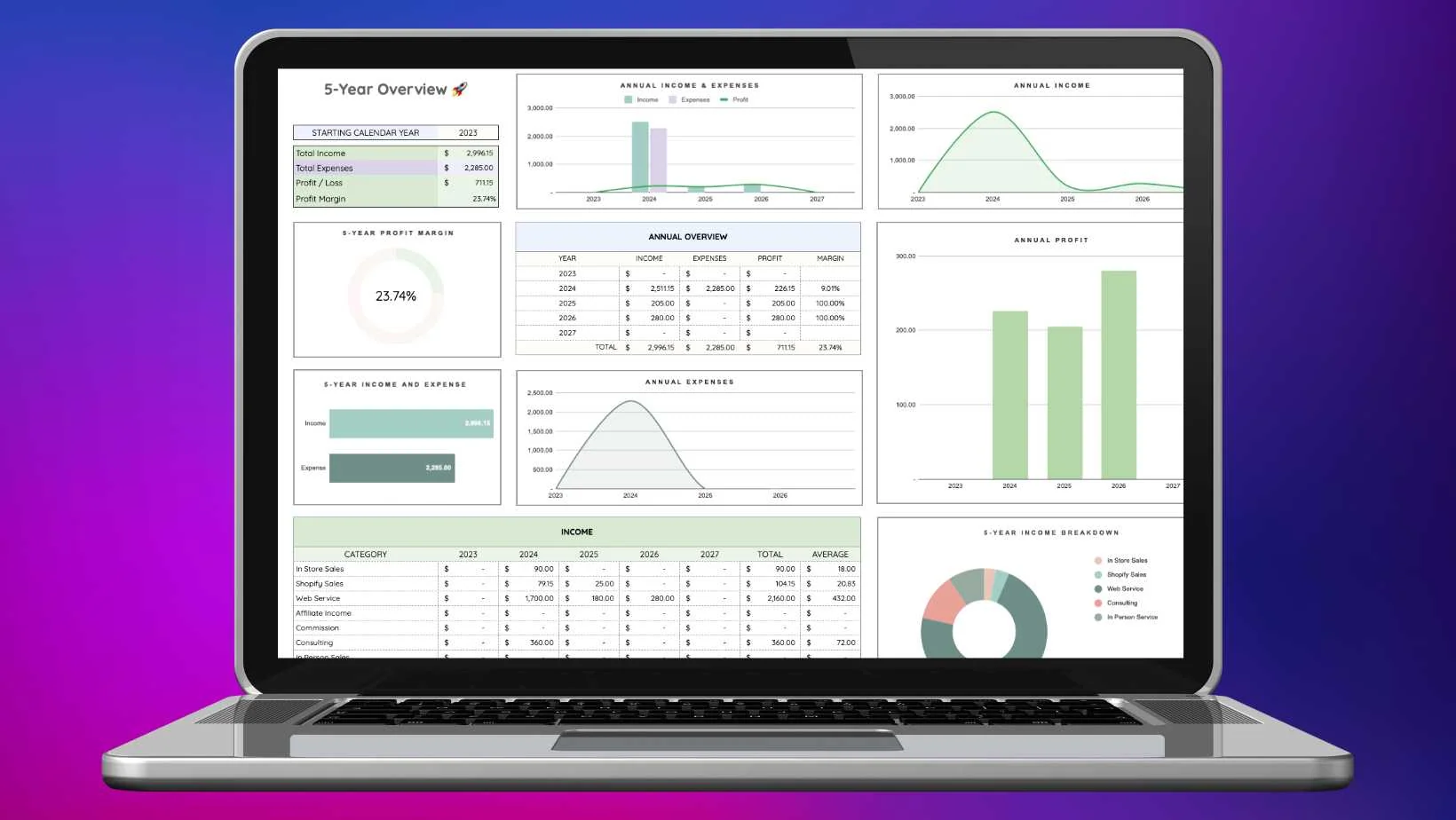
Sheets works well for small teams and low volume. One person owns follow-up, leads come in at a steady pace, and a color-coded tab is all you need.
You've likely outgrown it when you see these signs:
- Multiple reps are working the same list and stepping on each other.
- Lead routing matters, like territory, deal size, or round robin assignment.
- Reporting needs go past "how many leads came in" to cost per meeting and pipeline by campaign.
- Follow-up sequences need reminders and logging that a spreadsheet can't enforce.
LinkedIn offers native sync options with supported CRM and marketing automation platforms, so check its integration list for your tool. Many teams run both: the CRM as the system of record, and a Sheet as a lightweight backup. Since LinkedIn only keeps profile data for a year, that backup is worth having.
How Cleverly Helps You Follow Up on LinkedIn Leads
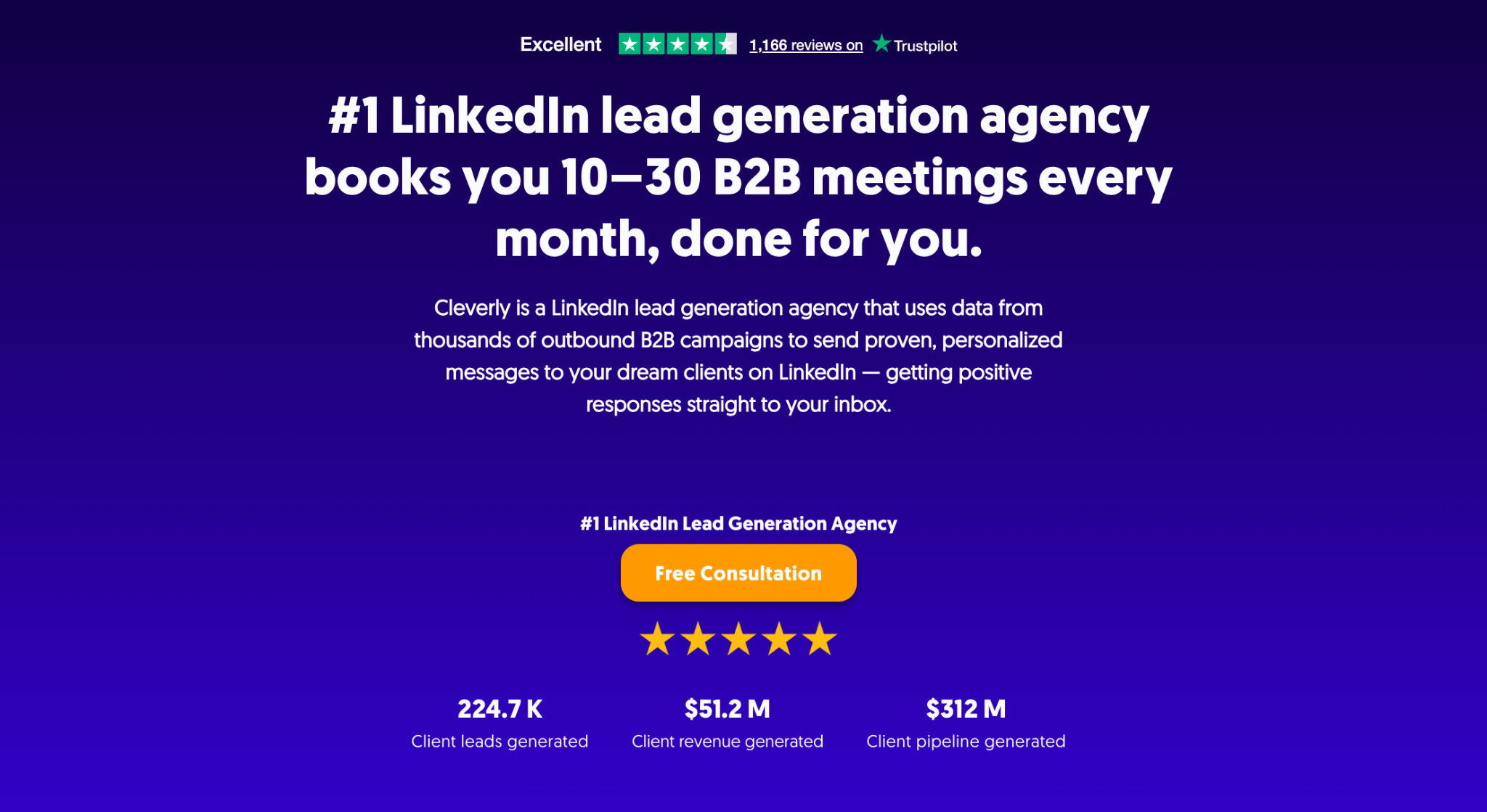
A clean sheet doesn't book meetings. Someone still has to reach out, and that's the part that usually stalls. Lead Gen Forms are paid ads. They bring in people who raised their hand. They don't go find the decision-makers who haven't.
That's where we come in. Our done-for-you LinkedIn lead generation service is the outbound side of the equation. We build your target list, write the messaging, run the outreach from your profile, and handle replies, so conversations turn into calls on your calendar.
Think of it as a complement to your Lead Gen Forms, not a replacement. Ads capture demand that already exists. Outbound creates conversations with the people you actually want to reach.
Most companies come to us after trying to run this internally. Tools are cheap, but the list building, copywriting, and constant testing eat real hours.
We've generated $312M in pipeline for our clients. Want leads that come to you and outbound that goes out for you? Book a strategy call.
Conclusion
Manual exports work for a one-off. Automation works for ongoing campaigns, and it takes less than half an hour to build. Test before you launch, add a notification so no lead sits unread, and keep your sheet tidy with dropdowns and color rules.
What turns rows into meetings is how fast someone follows up. Whether you stay in Sheets or move into a CRM, build your LinkedIn leads automation around that one goal, and check your setup against it every quarter.
Frequently Asked Questions
Free Resource
How to Scale a Profitable Cold Call System
Get the complete guide — download it instantly now.

Free Ebook
Download the Free Guide
Enter your details to get instant access.
You're all set! 🎉
Your ebook is downloading now.
Click below if the download didn't start automatically.