Table of Contents
What Is the Outlook Attachment Size Limit?
Outlook Attachment Size Limit by Account Type (2026)
What Happens When You Exceed the Outlook Attachment Size Limit?
How Many MB Can You Send in Outlook?
Is It Possible to Bypass the Outlook Attachment Size Limit?
How to Increase or Work Around the Outlook Attachment Size Limit (6 Methods)
Why You Should Avoid Attaching Large Files Directly (Even When Possible)
Outlook Attachment Size Limit vs. Other Email Providers
How Cleverly Helps B2B Teams Scale Email Outreach
Conclusion
Frequently Asked Questions
Modified On :
November 11, 2026
Key Takeaways
- Outlook’s limit depends on the account: 20 MB (POP3/IMAP/HTTP in classic Outlook), 25 MB (Outlook.com), and 35 MB send / 36 MB receive by default (Microsoft 365).
- Outlook counts the whole message. Encoding adds about 33%, so a file near the limit can still fail.
- The registry edit raises the limit for POP3, IMAP, and HTTP accounts only. It does not apply to Exchange mailboxes.
- Microsoft 365 admins can raise the limit to 150 MB.
- For large files, a OneDrive link is the safest option.
Your Outlook attachment size limit is 20 MB for POP3 and IMAP accounts in classic Outlook, 25 MB for Outlook.com, and 35 MB by default for Microsoft 365 mailboxes. But the number is only half the story.
Outlook counts the whole message, and email encoding adds about 33% to every attachment. That is how a 19 MB file ends up with “attachment size exceeds the allowable limit.”
We see this error all the time, usually right before someone hits send on a proposal. This guide covers the limit for each account type, why files fail even when they look small enough, and 6 ways to send large files without a bounce. It also covers how admins can raise the limit.
If you send Outlook email for sales, attachments also affect whether your message lands in the inbox. That is one reason we run cold email outreach for B2B teams, including inbox setup and deliverability management.
What Is the Outlook Attachment Size Limit?
The outlook attachment size limit is the maximum total size of all content allowed in a single Outlook email before the server blocks it from sending.
Most people assume it only applies to the files they attach. It doesn't. In most cases, the limit applies to the entire message — not just attachments. That includes signatures, formatting, and embedded images.
So even if your attached file looks fine on its own, a heavy email signature or a few inline images can push the message over the threshold.
There's also an encoding problem most people don't know about. Encoding methods like Base64 or MIME can significantly enlarge the email, which is why size limits apply after encoding.
In practical terms, this means a file that's 18 MB on your desktop can become close to 24 MB by the time it leaves your outbox. That gap alone causes a lot of unexpected failures.
Why does this limit exist at all? Primarily to prevent mail server overload, protect storage quotas, and maintain delivery reliability. Email infrastructure was never designed to be a file transfer system — and these limits reflect that.
📩 Your Attachments Aren’t the Only Thing Hurting Deliverability
We build cold email systems that actually land in inboxes. You focus on closing—we handle the tech, sending & optimization.
Outlook Attachment Size Limit by Account Type (2026)
The maximum attachment size in Outlook isn't a single number. It depends entirely on the type of account you're using.
Even if Outlook lets you send a large file, the recipient's mail server may reject it if their system has lower thresholds.
This is a critical distinction — the limit isn't just yours to manage. Both sides of the exchange matter.
What About Microsoft 365 Admins?
Outlook for Microsoft 365 has a default maximum size of 35 MB per email (including attachments), which can be raised up to 150 MB by an administrator.
But even at 150 MB, if the recipient's mail server caps at 25 MB, the message still fails. Raising your own limit only solves half the equation.
Outlook Attachment Size Limit by App: Windows, Mac, Web, and Mobile
Your limit can change depending on where you open Outlook. The app sets some limits. The account behind the app sets the rest.
Two points explain most “but my file is small enough” cases:
- The account sets the limit, not the app. Opening the same Exchange mailbox in Windows, on the web, or on a phone does not change the mailbox’s server-side limit.
- The lowest limit in the path wins. Your limit, the recipient’s limit, and any limit in between all apply. We cover this in the admin section below.
What Happens When You Exceed the Outlook Attachment Size Limit?
There are two error messages you'll typically see, and which one appears depends on how and when Outlook detects the problem.
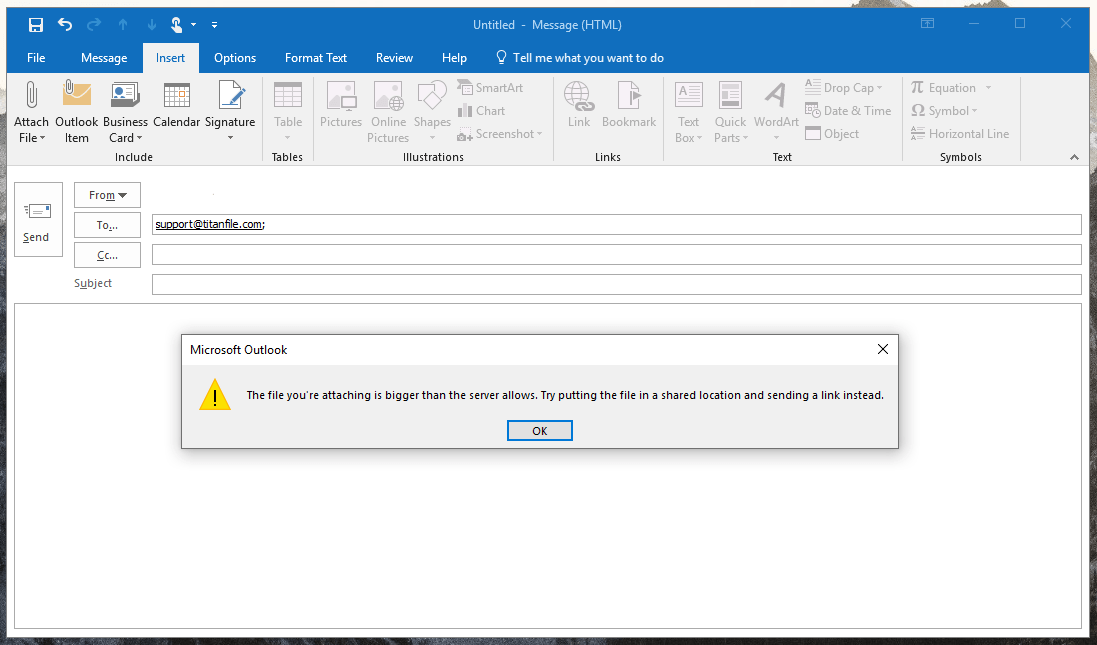
At the point of attachment:
"The file you're attaching is bigger than the server allows. Try putting the file in a shared location and sending a link instead."
At the point of sending:
"Attachment size exceeds the allowable limit."
Outlook 2013 and later versions have a default attachment size limit of 20 megabytes for internet email accounts. This limit applies whether you're adding one large attachment that exceeds 20 MB or several attachments whose combined size exceeds 20 MB.
The behavior also differs by account type. On desktop versions, Outlook usually catches the issue immediately and prompts you.
With Exchange or Microsoft 365 accounts, the error can happen silently on the server side after you click send — which is worse, because you may not realize the email never arrived.
Outlook integrates natively with OneDrive, and when you attempt to attach a file that exceeds the limit, Outlook uploads it to cloud storage and automatically creates a shareable link.
This is now the default behavior in newer versions — Outlook essentially pushes you toward cloud sharing automatically.
How to read the error. There are two different messages, and they mean different things:
- “The attachment size exceeds the allowable limit” appears before sending. Outlook’s own check blocked the file.
- A bounce that says “message too large” arrives after sending. A server along the path rejected it, often the recipient’s.
Fix the first by shrinking the file or sharing a link. Fix the second by asking the recipient about their limit, or send a link.
🚀 Stop Troubleshooting Email Issues. Start Generating Pipeline.
10,000+ B2B companies trusted Cleverly for outbound. You only pay for meeting-ready leads we deliver.
How Many MB Can You Send in Outlook?
Straightforward answer:
- 20 MB — most desktop versions (Outlook 2013–2024)
- 25 MB — Outlook.com and Outlook on the web
- 10 MB — standard Exchange accounts
- 35 MB (up to 150 MB) — Microsoft 365 with admin configuration
But the practical "safe" threshold is lower than any of these numbers. Because MIME/Base64 encoding inflates file size by approximately 33–35% during transmission, a 20 MB limit effectively means you should keep your total attachment size under 15–18 MB to avoid delivery failures.
A good rule of thumb: if you need to attach something larger than 15 MB, use a cloud link instead of a direct attachment. It's faster, more reliable, and doesn't carry encoding risk.
Is It Possible to Bypass the Outlook Attachment Size Limit?
Yes, but only some limits can be changed. The registry edit changes Outlook’s own check on POP3, IMAP, and HTTP accounts. It does not change what the server or the recipient’s mailbox will accept. If a server limit is the problem, a link is the only reliable fix.
If you raise Outlook's limit to 50 MB but your recipient's server caps at 20 MB, the email will still fail.
There are two categories of workarounds:
- Technical workarounds involve editing settings within Outlook or Windows — like the Registry Editor. These raise the local warning threshold but don't touch server-side limits.
- Practical workarounds involve changing how files are delivered entirely — cloud links, compression, file splitting. These are more reliable and easier to maintain.
This is why most people use cloud-sharing links instead. The Registry edit gets people excited because it sounds like a clean fix — but it isn't. The server doesn't care what you changed in regedit.
How to Increase or Work Around the Outlook Attachment Size Limit (6 Methods)
These are ordered from easiest to most technical. Start at Method 1 and only go deeper if your situation requires it.
Method 1: Share Files via OneDrive Link (Easiest and Built-In)
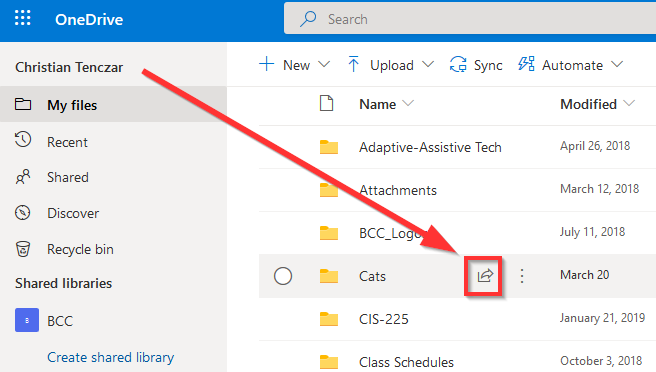
This is the most reliable method for anyone in the Microsoft ecosystem, and Outlook already nudges you toward it automatically.
When you attach a file that exceeds the limit, Outlook uploads it to your cloud storage and automatically creates a shareable link, which is included in your email so the recipient can download and access the file directly.
You can also do this manually:
- Click "Attach File" in Outlook
- Select your file — Outlook will prompt you to upload to OneDrive
- Choose "Upload to OneDrive and share as link"
- Set permissions: view-only or edit access
The maximum file size you can attach and share through OneDrive is 250 GB. That's more than enough for virtually any professional use case.
Best for: Microsoft 365 users, business teams, internal file sharing
Method 2: Compress Files into a ZIP Archive
Compression won't solve every problem, but for documents and spreadsheets, it often brings files well within the sending limit.
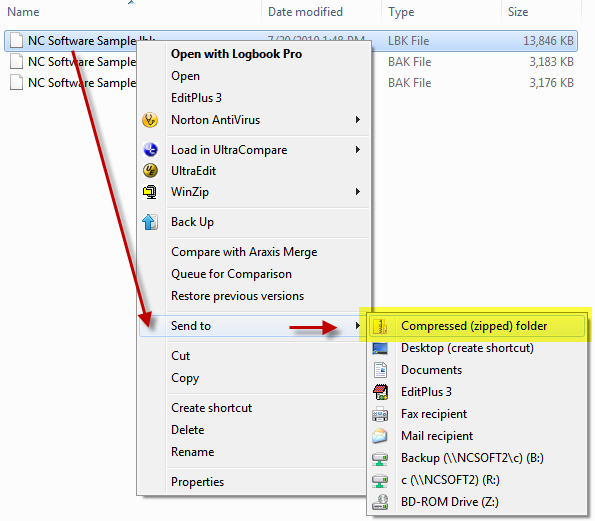
How to do it on Windows:
- Right-click the file
- Select "Send to" → "Compressed (zipped) folder"
- Attach the resulting .zip file
Depending on the file type, compression can cut size by 20%–90%. Text-heavy files like Word docs, spreadsheets, and CSVs compress very well. Compression results vary. Text-heavy files shrink a lot. PDFs, images, and videos are usually already compressed and shrink very little.
Best for: Documents, spreadsheets, text files, mixed file bundles
Method 3: Resize or Compress Images Before Attaching
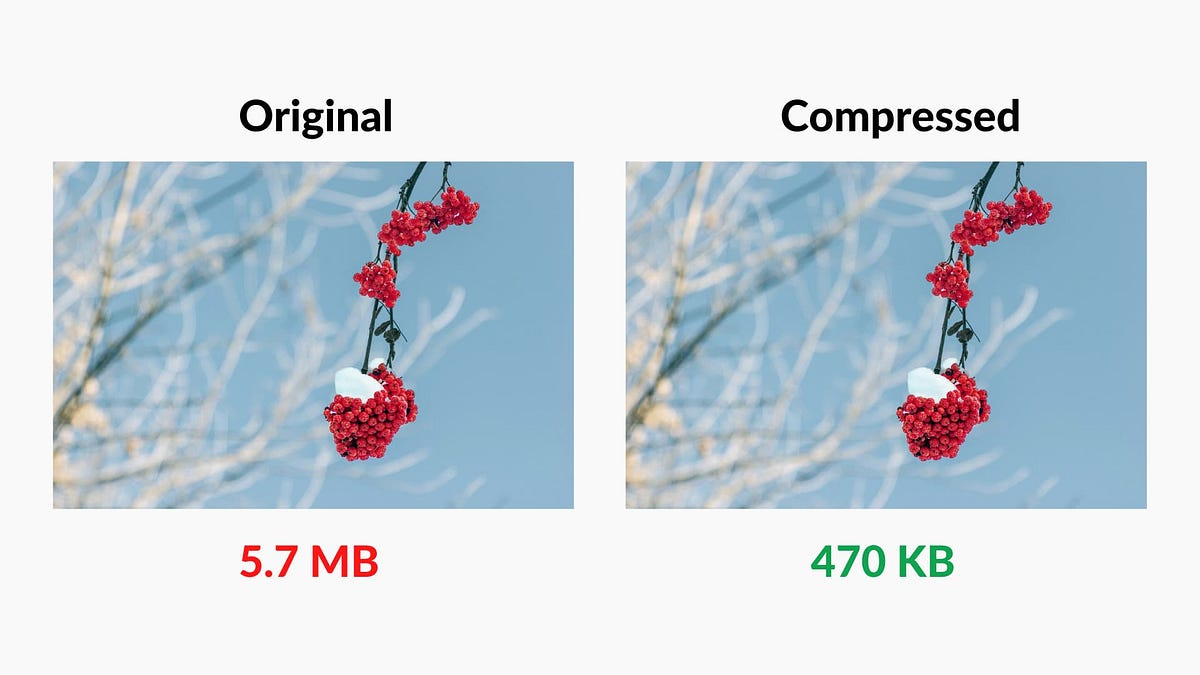
Images are often the hidden culprit behind oversized emails, especially in proposals, presentations, or reports with embedded visuals.
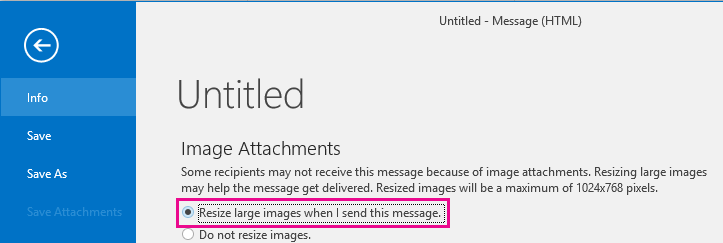
Outlook has a built-in fix: when you attach a large image, look for the "Resize large images when I send this message" checkbox at the bottom of the compose window. Tick it, and Outlook sends a lighter version automatically.
For manual control:
- Click the image inside your email
- Go to "Picture Format" → "Size" tab
- Adjust dimensions as needed
This works great for newsletters, presentations, or photo-heavy reports.
Best for: Photo attachments, image-heavy decks, embedded visuals in proposals
Method 4: Use Google Drive, Dropbox, or SharePoint Links

If you're not in the Microsoft ecosystem — or you're sending to external recipients who may not have OneDrive access — third-party cloud storage works just as well.
Steps:
- Upload your file to Google Drive, Dropbox, or SharePoint
- Generate a shareable link
- Paste the link directly into the email body
The advantages over direct attachment go beyond just size. You get revocable access, version control, and the ability to update the file after sending without resending the email. SharePoint is the best option for Microsoft 365 organizations sharing files internally.
Best for: Teams not using Microsoft 365, external file sharing, large assets with ongoing updates
Method 5: Split Large Files into Smaller Parts
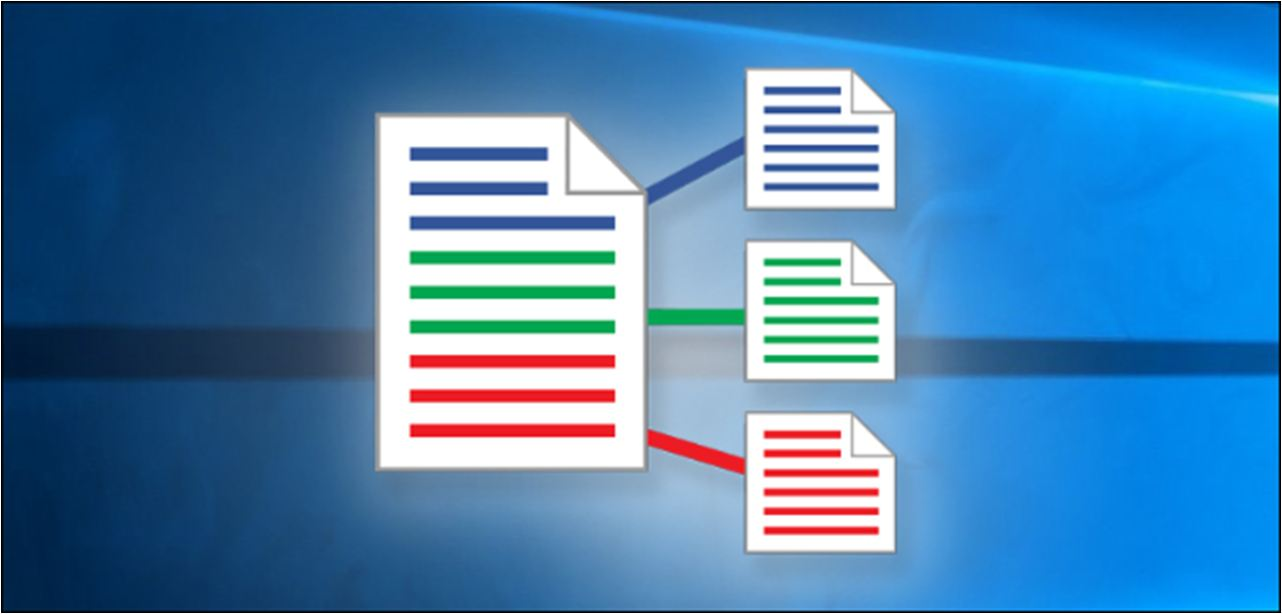
This is a last-resort option — it works, but it's inconvenient for everyone involved.
Tools like WinRAR or 7-Zip can divide a large file into segments, each small enough to fit within the attachment limit.
Steps in 7-Zip:
- Right-click the file → "Add to archive"
- Set the "Split to volumes, bytes" field to your preferred segment size (e.g., 15M)
- Send each resulting file part in separate emails
The recipient needs to reassemble the parts before they can use the file. This creates friction, especially with non-technical contacts. 7-Zip splits attachments into pieces, but this technique isn't always recommended as your attachments may be altered.
Best for: Edge cases where cloud sharing is genuinely not an option
Method 6: Increase the Limit via Windows Registry Editor (Advanced)
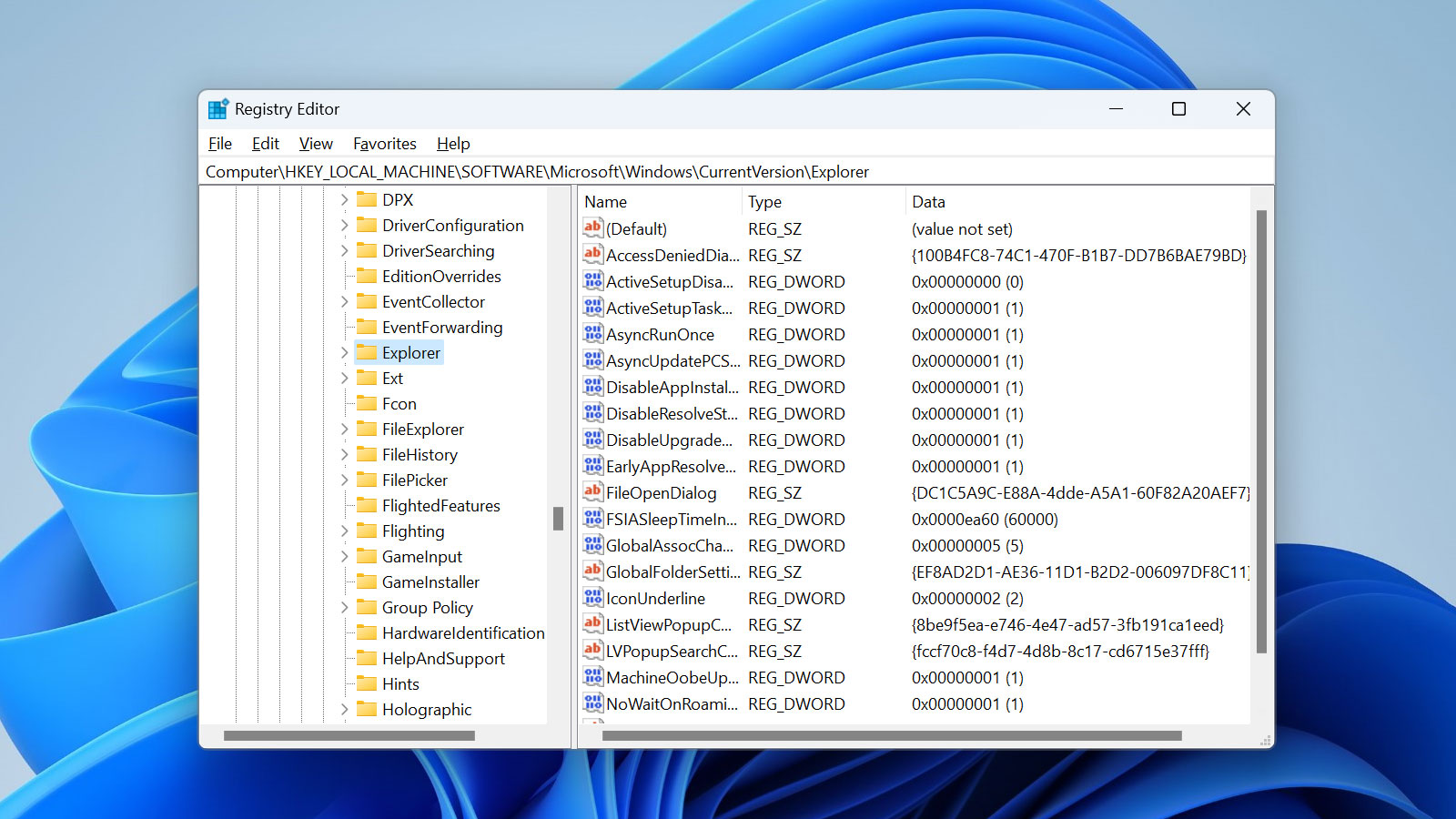
This method is often overhyped. It removes Outlook's local attachment size warning — but it does not raise the mail server limit. Use it only if you understand what it does and doesn't do.
Steps:
- Press Windows + R, type regedit, press Enter
- Navigate to the key for your Outlook version:
- Outlook 2019/2021/365 (16.0): HKEY_CURRENT_USER\Software\Microsoft\Office\16.0\Outlook\Preferences
- Outlook 2013 (15.0): HKEY_CURRENT_USER\Software\Microsoft\Office\15.0\Outlook\Preferences
- Outlook 2019/2021/365 (16.0): HKEY_CURRENT_USER\Software\Microsoft\Office\16.0\Outlook\Preferences
- Right-click in the right pane → New → DWORD (32-bit) Value
- Name it MaximumAttachmentSize
- Set the value in KB (e.g., 30720 for 30 MB)
Setting a value of zero configures no local attachment size limit within Outlook.
This applies to POP3, IMAP, and HTTP accounts only. To set it through policy, use: HKEY_CURRENT_USER\Software\Policies\Microsoft\Office\<x.0>\Outlook\Preferences
The MaximumAttachmentSize value is a DWORD in KB. A value of 0 means no Outlook-side limit. A value below 20 MB lowers the limit.
Critical caveat: This only works if your mail server also allows the larger size. If your recipient's server caps at 20 MB, the email will still fail even after the Registry edit. Always back up the Registry before making changes.
Best for: IT admins, internal environments with known server limits on both ends
How to Increase the Outlook Attachment Size Limit as an Admin
If you manage Microsoft 365, you can raise the limit yourself. Exchange Online allows message size limits from 1 MB to 150 MB. The default is 35 MB to send and 36 MB to receive.
Remember that these limits apply to the whole message, not just the file. Encoding adds about 33%, so a higher limit does not mean you can attach a file of that size. Microsoft’s own example: a 64 MB setting allows a real message of about 48 MB. A 75 MB setting gives you roughly 56 MB of actual attachments.
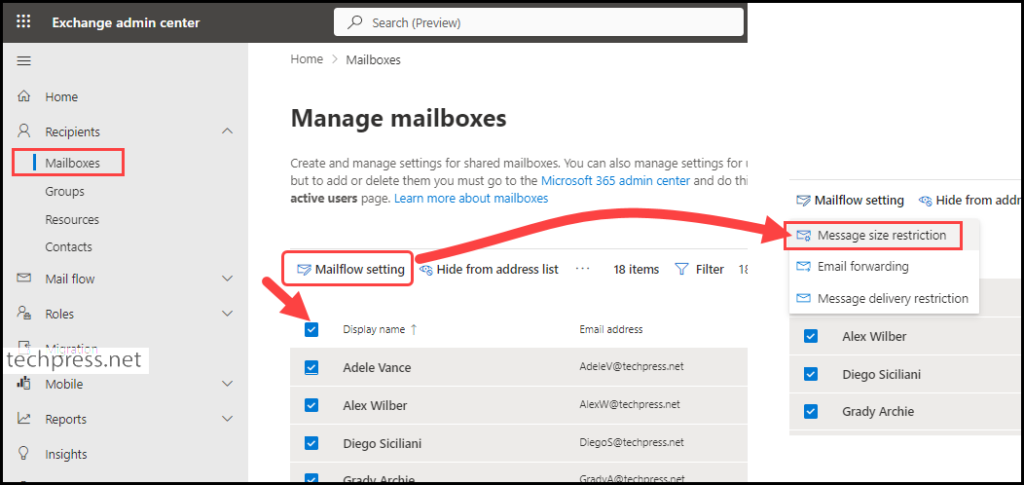
Option 1: Exchange admin center
- Open the Exchange admin center.
- Go to Recipients > Mailboxes and select the mailbox.
- Open Message size restrictions.
- Set the new send and receive limits and save.
Option 2: PowerShell
Check the current limits: Get-Mailbox -Identity <Identity> | Format-List MaxSendSize,MaxReceiveSize
Change one mailbox: Set-Mailbox -Identity alias@domain.com -MaxSendSize 75MB -MaxReceiveSize 75MB
Change every existing mailbox: Get-Mailbox | Set-Mailbox -MaxSendSize 75MB -MaxReceiveSize 75MB
Change the default for new mailboxes: Get-MailboxPlan | Set-MailboxPlan -MaxSendSize 75MB -MaxReceiveSize 75MB
Allow about 30 minutes for the change to replicate. For Exchange Server on-premises, the default error appears above 10 MB, and the limit is set under Maximum send size in Transport Settings. Changes there can take hours.
If the error is still there after the change, check every point in the path:
- The sender’s send limit.
- The recipient’s receive limit.
- The recipient’s email provider. Their limit is outside your control.
- The client-side limit, if the sender uses a POP3 or IMAP account.
- The 112 MB cap on messages routed outside Microsoft’s datacenters.
Even at the maximum setting, a 150 MB limit means Outlook on the web caps out at about 112 MB. For anything much larger, share a link instead. (Method 1 above covers OneDrive links.)
Why You Should Avoid Attaching Large Files Directly (Even When Possible)
Even if your account supports larger attachments, there are good reasons not to use them.
Every attachment you send gets encoded. That encoding inflates the file's actual size in transit by about a third. So a 30 MB file becomes a 40 MB message — and that full weight hits your mailbox storage, the recipient's storage, and every mail server in between.
Large emails also trigger spam filters. ISPs and corporate email security systems flag oversized messages as suspicious, which increases the chance your email gets quarantined or silently dropped before it ever reaches the inbox.
If you're doing any kind of professional outreach, this is especially important — email deliverability suffers when you routinely send heavy attachments.
Cloud links solve all of this. You share a pointer to the file, not the file itself. Access is revocable. The recipient gets the most current version. And your email stays lightweight enough to land where it's supposed to.
Outlook Attachment Size Limit vs. Other Email Providers
Outlook isn't uniquely restrictive here. The entire email industry converged on roughly the same ceiling years ago.
The takeaway: 20–25 MB has been the industry standard for years, and that hasn't changed. Cloud link sharing has become the de facto workaround across every major platform — not just Outlook.
If you're regularly running into this limit, the real fix isn't to keep pushing against it. It's to change how you share files.
Sending Attachments in Cold Email: What Outlook Senders Should Know
Everything above assumes the email reaches a person who expects it. Cold email is different. When a stranger gets a message with a file attached, spam filters look at it harder.
There is no agreed size threshold. But practitioners generally recommend avoiding attachments in cold outreach, especially from new domains. A link to a hosted page does the same job with less risk.
Before you send, run through this checklist:
- Skip the attachment in the first email. Offer to send the file once they reply.
- Link to a hosted page or doc instead of attaching a PDF.
- Use a small, plain file if you have to attach one. Avoid macros and executables.
- Test before you send. Send to your own inboxes at a few providers and see where it lands.
- Confirm authentication. Check that SPF, DKIM, and DMARC are set up correctly.
For more on this, see our email deliverability checklist and our guide to cold email infrastructure.
How Cleverly Helps B2B Teams Scale Email Outreach
If Outlook is part of your sales workflow, the attachment limit is a small problem next to inbox placement. We run done-for-you cold email outreach for B2B teams, including list building, inbox and domain setup, deliverability management, and SPF, DKIM, and DMARC.
We offer two plans. Growth is a flat monthly retainer. Scale is pay per lead. Both are month-to-month with no contracts.
We've generated over $312M in pipeline revenue for clients across industries — and a big part of that comes down to getting the technical foundations right, including keeping messages lean and inbox-ready.
If you're spending time troubleshooting attachment errors and email infrastructure issues instead of focusing on pipeline, that's a sign you might benefit from handing the outbound function to a team that's built for it.
Our cold email service operates on a performance model — you only pay for meeting-ready leads we send your way. No long-term contracts, no operational overhead on your end.
Want to see what a well-built outbound email system looks like?
🤝 Book a strategy call with our team
Conclusion
The outlook attachment size limit is a permanent feature of how email infrastructure works — not a bug you can patch away.
Most accounts cap at 20–25 MB, Exchange accounts at 10 MB, and while Microsoft 365 admins can push that higher, recipient server limits still apply on the other end.
The Registry edit removes Outlook's local warning, but it doesn't touch the server-side restriction. The only workaround that consistently works regardless of account type is switching from direct attachments to cloud sharing links — OneDrive, Google Drive, SharePoint, or Dropbox.
In 2026, that's not a workaround anymore. It's just how file sharing over email is supposed to work.
Frequently Asked Questions
Free Resource
How to Scale a Profitable Cold Call System
Get the complete guide — download it instantly now.

Free Ebook
Download the Free Guide
Enter your details to get instant access.
You're all set! 🎉
Your ebook is downloading now.
Click below if the download didn't start automatically.